
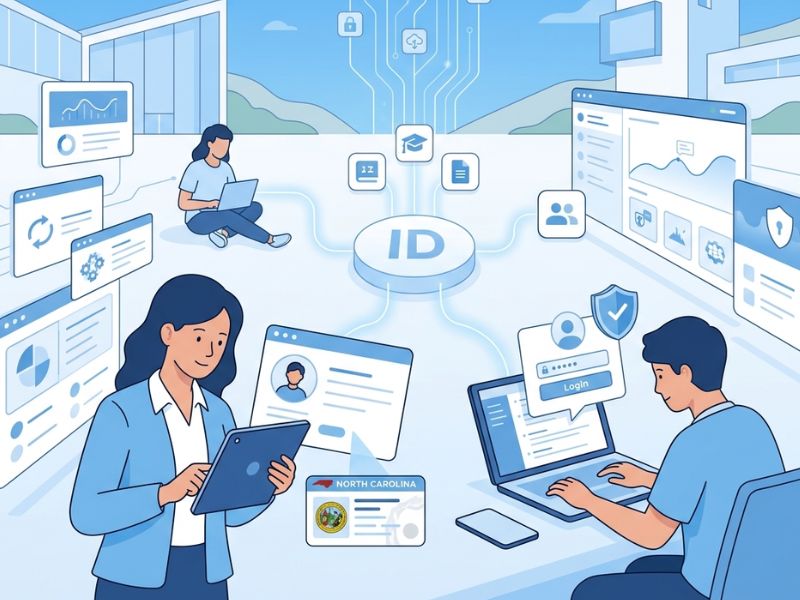
NCEdCloud administration is the centralized identity and access management system used across North Carolina K–12 schools to manage student accounts, staff access, permissions, and educational applications. The platform helps school districts securely manage digital learning access while simplifying authentication for students, teachers, and staff members.
If you want to understand the platform’s features, setup process, and login methods in detail, you can read this complete NCEdCloud setup guide.
In North Carolina school districts, the platform acts as the operational backbone of digital education. It centralizes identity management, user permissions, security policies, and educational application access into a single secure environment for IT teams and school administrators.
This guide explains the system in a practical and easy-to-understand way so administrators can manage accounts, troubleshoot login issues, and handle permissions more efficiently. In addition, they can manage roles and also control data through the system.
Overview of NCEdCloud Accounts
In NCEdCloud administration, every account begins outside the system. It is not created manually inside the platform. Instead, accounts are generated through district-level data systems such as:
- Student Information Systems (like Infinite Campus)
- HR and payroll systems
- UID or identity management systems
These systems send data into NCEdCloud through a nightly synchronization process.
How account creation actually works
When a new student or staff member is added to the district system
- Data is entered in the source system by them.
- A system assigns individual identification.
- Nightly sync transfers data into NCEdCloud
- Account is automatically created or updated
This makes the system highly dependent on accurate source data for proper account creation, synchronization, and access management.
Users looking for basic login instructions and account access steps can also review the NCEdCloud login guide.
Role assignment structure
Roles are automatically assigned based on job classification:
- Students → Student role
- Teachers → Teacher role
- Staff → Administrative/support role
- IT/Admin → Elevated system roles
The system also integrates with major educational platforms such as Canvas, PowerSchool, Google Workspace, and Microsoft 365 to simplify single sign-on access across schools.
Real problem administrators face
One of the most common issues is missing accounts. However, in most cases:
- The account is not missing in NCEdCloud
- The problem is incorrect or incomplete source data
This is why the process always starts with checking upstream systems before troubleshooting inside the portal. .
Claiming & Provisioning Accounts
Account claiming is one of the first steps users encounter in NCEdCloud administration.
Although accounts are created automatically, they are not active until the user claims them.
What account claiming involves
Users typically must:
- Verify identity using school-provided credentials
- Set security questions for recovery
- Create an initial password
- Confirm their school assignment
Administrator responsibilities
To ensure smooth onboarding, administrators play an important role.
- Confirm user exists in system after sync
- Ensure correct school and role assignment
- Provide claiming instructions to users
- Help resolve failed claim attempts
Common real-world issues
In actual school environments, administrators often deal with:
- Students unable to locate their account
- Staff failing verification due to mismatched data
- Duplicate accounts caused by sync errors
- Incorrect school assignment during onboarding
Practical solution approach
In most cases, account claiming issues are resolved by:
- Fixing data in the source system
- Waiting for next nightly sync
- Clearing duplicate records
- Reissuing claim instructions
Account provisioning is not just activation, it is identity validation across multiple systems.
Managing Roles and Permissions
Role management is one of the most powerful responsibilities in the system because it determines what each user can access.
How roles control access
Roles directly affect:
- Applications visible in dashboard
- Data access level
- Student or classroom visibility
- Administrative tools availability
Example in real school settings
A teacher account typically includes:
- Access to “My Students” dashboard
- Gradebook tools
- Learning platforms like Canvas
A student account includes:
- Course assignments
- Learning apps
- Limited dashboard access
A staff account may include:
- HR systems
- Internal communication tools
- Restricted educational apps
Role request scenarios
Sometimes users need additional access:
- Counselors requesting student data access
- Support staff needing teacher-level tools
- Temporary administrative access for projects
Administrators handle these requests manually based on district policy.
Real problem in schools
Incorrect role assignment causes:
- Missing apps
- Access denial errors
- Confusion among staff and students
Solution
Regular audits in NCEdCloud administration ensure roles match real-world responsibilities.
Disabling or Resetting Accounts
Security is one of the most critical responsibilities in NCEdCloud administration.
Accounts must be disabled or reset in situations such as:
- Employee resignation
- Account compromise
- Forgotten passwords
- System lockouts
Administrator actions
Administrators can:
- Disable accounts instantly from People view
- Reset individual passwords
- Generate default passwords for groups
- Restore locked accounts after verification
Real-world example
If a teacher leaves mid-semester and their account remains active:
- They may still access student records
- Sensitive data may be exposed
- Security risk increases significantly
That is why NCEdCloud administration requires immediate account deactivation.
Password reset challenges
Schools commonly deal with:
- Students forgetting passwords
- Teachers getting locked out
- Bulk resets during school start periods
Users facing login-related issues can also follow this detailed NCEdCloud access process guide for troubleshooting steps.
Practical solution
Administrators use structured reset workflows to ensure fast recovery without compromising security.
Account Overrides and Data Sync Control
Advanced NCEdCloud administration includes control over automatic syncing behavior.
Normally, system data is updated every night. However, this can sometimes overwrite manual corrections.
Disable Updates from Source Data” is used when:
- Staff transfers between schools
- Temporary role adjustments are needed
- Manual corrections must remain unchanged
Real-world problem
Without this feature:
- Manual updates are overwritten automatically
- Admin changes are lost overnight
- User roles revert incorrectly
Example scenario
A teacher transfers from one district to another:
- HR updates record
- NCEdCloud sync runs overnight
- Role may revert if not properly controlled
Solution
Using override settings ensures stability and prevents unwanted data loss in NCEdCloud administration.
Bulk Operations & Administrative Workflows
Large school districts depend heavily on bulk tools in NCEdCloud administration.
Why bulk tools matter
Managing thousands of accounts individually is not practical. Bulk workflows allow administrators to apply changes at scale.
Bulk operations include:
- Password resets for entire schools
- Role assignments for multiple users
- Enforcing MFA policies
- Enabling/disabling applications
Application control
Administrators can manage access to:
- Canvas
- Discovery Education
- Learning management systems
- Assessment tools
Real problem
Without bulk operations:
- IT teams become overloaded
- Errors increase
- Updates take too long
Solution
Bulk workflows in NCEdCloud administration reduce manual workload and improve consistency.
Monitoring & Support System
Monitoring ensures system reliability in NCEdCloud administration.
What administrators monitor
- Login success rates
- Authentication failures
- System uptime
- App availability
Common issues in schools
- Invalid login errors
- Two-factor authentication failures
- Missing applications in dashboard
- Browser-related issues
Support process
- Check system status
- Identify issue type
- Confirm local vs system-wide problem
- Escalate to IT support if needed
Real problem
Most issues are not system failures—they are configuration or user-side problems.
Solution
Proper training and documentation reduce repeated support tickets significantly in NCEdCloud administration.
NCEdCloud Administration vs Traditional School Login Systems
Traditional school login systems often require students and teachers to remember multiple usernames and passwords for different educational tools. This creates login confusion, password fatigue, and increased support requests for IT departments.
NCEdCloud administration simplifies this process through centralized identity management and single sign-on access, keeping account ownership, roles, and application access tied to one verified user record.
Key advantages include:
Centralized authentication
Automated account provisioning
Faster student onboarding
Better district-wide security control
Reduced password reset requests
Easier application management
This centralized approach improves both security and classroom efficiency across North Carolina school districts.
Best Practices for Administrators
Strong NCEdCloud administration depends on consistent habits and disciplined data management.
Best practices include:
Keep source data clean and updated
Avoid unnecessary manual overrides
Regularly audit roles and permissions
Track bulk changes carefully
Train staff and students on login issues
Why it matters
Most system issues arise from wrong or stale data not the system.
Real impact
Good administration leads to:
- Fewer login issues
- Faster onboarding
- Better security control
- Reduced IT workload
Real Impact of NCEdCloud Administration in Schools
In real US school environments, NCEdCloud administration directly affects daily learning operations.
It impacts:
- Student access to assignments
- Teacher productivity
- IT support workload
- Data security
- Classroom efficiency
When properly managed
- Students log in without issues
- Teachers access tools instantly
- IT teams handle fewer tickets
- Digital learning runs smoothly
When poorly managed
- Login failures increase
- Access confusion grows
- Support requests rise
- Learning time is lost
This shows how critical NCEdCloud administration is for school operations.
Conclusion
NCEdCloud is the foundation of digital identity, security, and access management across North Carolina schools. It links up students, teachers, staff, and applications into one secure system.
This platform handles everything from provisioning accounts to managing roles, performing actions in bulk, overriding systems, and monitoring to secure the digital campus.
When done right, it takes the load off IT, makes the system more reliable, and enhances the learning experience for entire districts.
Education infrastructure is, at the same time, its operational backbone, not just a technical system.
Frequently Asked Questions (FAQs)
1. What is NCEdCloud administration used for in schools?
The NCEdCloud administration handles the management of student, teacher, and staff accounts in North Carolina. With a single access point, it manages login access, assigns user roles, controls permissions, and connects users with learning tools like Canvas and PowerSchool.
2. Why can’t a student or teacher log into NCEdCloud?
Most login problems arise because of incorrect usernames, expired passwords, or accounts not completely synced from the school. The delay in activation or a role not assigned properly in NCEdCloud administration may cause this issue. Typically, administrators resolve such issues by verifying the data source or resetting credentials.
3. How do administrators reset passwords in NCEdCloud administration?
Administrators can reset passwords through the NCEdCloud admin portal by selecting the user account and generating a new default password. In many districts, passwords can also be reset in bulk by grade level or school. This is a common task in NCEdCloud administration, especially at the start of a school year.
4. What should I do if my NCEdCloud account is locked?
Users whose accounts are locked because of several failed login attempts must contact their school IT administrator. Accounts in NCEdCloud can be locked, but they can be unlocked and reset. It allows for a secure restoration of access.
5. Can administrators control which apps users see in NCEdCloud?
Certainly, NCEdCloud management can influence the choice of applications for use. According to roles and districts, the administrators will grant or deny access to applications like Canvas, PowerSchool, or Discovery Education. This ensures that what is appearing in the tool filter and in the tool panel is relevant.