
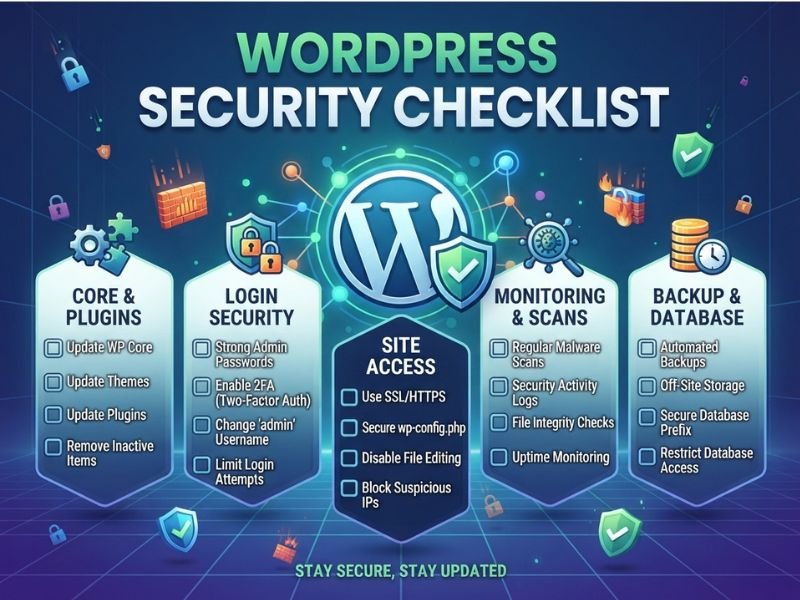
The WordPress security checklist is an effective list of steps taken to ensure the safety of a website, even before any security threats arise, detecting them early on, and taking measures after that. The current WordPress security checklist centers around prevention, detection, and recovery of existing websites. Instead of broad security theory, it gives you 18 checks you can verify, record, and repeat throughout 2026.
Your WordPress Website Security Checklist at a Glance
Use this WordPress security checklist as a working plan rather than a task. It moves from recovery and access to software, hosting, hardening, monitoring, and regular review.
| Priority | Focus Area | Evidence of Completion |
| First | Backups and access | Restore tested; privileged accounts protected |
| Next | Updates and software | Maintained components; urgent findings addressed |
| Next | Hosting and hardening | Secure connections; configuration reviewed |
| Ongoing | Monitoring and audits | Alerts delivered; review date recorded |
Before changes, confirm access and record settings. Use staging when changes could affect functionality. Keep the WordPress website security checklist with the site’s maintenance records. A WordPress security audit checklist should also show the owner and next review date. Review time.
Backups and Recovery: Complete These Checks First
1. Back Up Both Website Files and the Database
A backup should include website files and the database. Automate backups at a frequency that matches site activity. A store with daily orders needs a different schedule from a brochure site updated twice a month.
Keep copies outside production when possible. Restrict access, set sensible retention, and protect stored copies from unauthorized changes. WordPress security best practices treat recovery as part of security.
Verification: Record the last successful backup date, storage location, retention period, and owner.
2. Test a Restore and Save Recovery Access
A WordPress security checklist should never treat a backup notification as proof that the site can be restored. Restore a recent copy to staging and check pages, forms, logins, media, database content, and critical functions.
Keep recovery keys and hosting login separate from WordPress. Even when the admin panel is down, you should have another means to gain access to the system. This is perhaps one of the most essential WordPress security tips to decrease downtime.
Verification: Take note of the last restore test and who performed it.
Analyze failed restore tests.
Keep WordPress, Plugins, and Themes Secure
3. Update WordPress Core, Plugins, and Themes
Install security updates promptly. WordPress supports automatic updates, and its official hardening guidance recommends keeping WordPress current and obtaining software from trusted sources.
For major changes, use staging first and then check important functions after deployment. Pay attention to security releases even when a full feature update can wait. A WordPress security checklist should treat urgent patches differently from ordinary design updates.
4. Remove Unused and Untrusted Software
Delete plugins and themes you no longer need instead of leaving them inactive. Review abandoned extensions, unsupported packages, and pirated or modified software. WordPress recommends using trusted sources such as the official repository or established vendors.
Do not remove a required parent theme or dependency simply because it appears inactive. Confirm what each component supports before deleting it. Fewer unnecessary components mean fewer things to maintain.
5. Check Installed Versions Against Known Vulnerabilities
“Nothing to update” does not automatically imply “nothing to worry about,” since there might be some vulnerabilities out there that you don’t know of yet. Match against the currently installed version against known vulnerabilities and vendor advice. If the component is vulnerable but cannot be patched, then uninstall the component.
Add a list to your WordPress Security Checklist of the component, version, status of the component being maintained, its origin, and the problem with it.
Protect Administrator Accounts and Login Access
6. Use Unique Passwords and Protect Recovery Accounts
Utilize strong passwords for WordPress Administrators, hosting control panels, registrars, databases, and other vital systems. The password management application will create and save credentials without making users use one repeatedly. WordPress also advises using strong passwords and authentication protection.
Ensure that the recovery email account is also secured. A good password on WordPress will be of no use if a hacker gains access to change the password through the compromised recovery email account.
7. Enable Two-Factor Authentication
Two-factor authentication should be enabled for administrators and any other important accounts. Make sure your recovery code is kept safe, and test whether the recovery procedure will work in advance.
It is incorrect to assume that setting up two-factor authentication once will be sufficient. Ensure that newly created privileged accounts are also subjected to the requirement.
8. Apply Least Privilege and Remove Stale Access
Give each person an individual account and only the role they need. Review former contractors, agencies, developers, and staff who no longer require access. Remove unused accounts and rotate credentials for integrations that may have been shared.
9. Limit Abusive Login Attempts
Apply rate-limiting measures, use bots, or any other kind of protection against login automation. Do not select one lockout number which suits all sites since there are different requirements for a busy commercial site and a small private website.
Verification: Check out a regular login and make sure that second authentication is needed and also check administrator’s list and emails.
Secure Hosting, HTTPS, and File Transfers
10. Check Server Isolation and Supported Server Software
Inquire from your host regarding server updates, supported PHP versions, account isolation, backups, and incident support. Shared hosting is sufficient for many websites.
WordPress suggests that you use a host that offers current server software and good recovery options.
11. HTTPS Implementation and Utilization of SFTP or SSH
Make sure that the certificate is properly verified, HTTP is redirected to HTTPS, and no insecure resources are used on the page. Also, check forms, login, and checkout.
SFTP and SSH must be used for file transfer. Even though HTTPS gives security during data transfer, it cannot delete malware from an application.
Apply WordPress Hardening Without Breaking Your Site
Hardening WordPress should lower unnecessary vulnerability without disabling essential features of your website. Make sure to make one change at a time and then test your website.
12. Review File Permissions and Protect Sensitive Files
Use permissions that match your hosting environment, ownership model, and application needs. Avoid overly broad write or execute access. Protect configuration backups, database exports, logs, repositories, and other sensitive files from public access.
Do not blindly copy permissions from another server. WordPress hardening depends on how your host runs PHP and how files are owned. Your hosting provider can confirm the correct setup.
13. Disable Dashboard Code Editing and Restrict Risky Execution
Consider DISALLOW_FILE_EDIT to prevent administrators from editing plugin and theme files from the dashboard. For upload directories, ask your host about preventing script execution where appropriate.
Do not apply Apache .htaccess rules to an Nginx server as if the two configurations were interchangeable. Use the configuration method supported by your server.
14. Review APIs, Debug Output, and Security Headers
Restrict XML-RPC only after confirming that no required service depends on it. Preserve necessary REST API functionality for connected applications. Keep production error details out of public pages and review security headers for compatibility.
Test forms, checkout, editing, APIs, and connected services after every hardening change. Good WordPress hardening improves protection without creating a new availability problem.
Configure a Firewall, Security Scans, and Monitoring
15. Enable a Web Application Firewall
Web Application Firewall (WAF) can prevent or filter attacks from reaching areas on your website. Cloud and edge protection, as well as a web application firewall, operate at various levels, therefore, you should be aware of what your setup will offer.
A firewall is in addition to patching and is not meant as a substitute for any other security measure.
16. Run Vulnerability, Malware, and File-Integrity Checks
These scans respond to various questions. Vulnerability scanning scans for any weakness. Malware scanning scans for indications of any infection. File-integrity monitoring scans for any abnormal changes to files.
An external scanner will not be able to scan all the private server files. The recommendations of Sucuri help to distinguish between remote and server scanning.
17. Enable Security Logs and Actionable Alerts
Trigger alerts for unknown administrative accounts, strange log-ins, unexpected file modifications, discovery of any malware, and unsuccessful backups. Logging becomes effective if there is someone who analyzes and responds to these logs.
This is how a WordPress security monitoring tool helps in reality – turning key events into alerts which an individual can respond to as part of a WordPress security checklist. As suggested by Sucuri, we should consider WordPress security monitoring and not just one-time testing of security.
Verification: Ensure that the scanning process completes successfully and alerts go to an inbox, dashboard, or individual.
WordPress Security Audit Checklist: What to Review Regularly
WordPress security audit checklist must include the owner of the list, its date, and next steps. You should follow a schedule that depends on activity of the website, not the general one for all websites.
| Frequency | Focus Area / Triggers |
| Continuously / As Alerted | Urgent vulnerabilities, suspicious activity, backup failures |
| Weekly | Pending updates and unresolved findings |
| Monthly | User access, integrations, software inventory, alert settings |
| Periodically & After Major Changes | Restore tests, configuration, and critical user journeys |
Record status, accountability, last check, and the next task for each of these. With this simple record, you convert a WordPress security checklist into a repeatable process for maintenance.
Tags: WordPress security checklist priorities; WordPress security checklist verification; WordPress security checklist accountability; WordPress website security checklist onboarding; WordPress website security checklist handoffs; WordPress website security checklist migration; WordPress website security checklist reviews; WordPress website security checklist records; WordPress security best practices updates; WordPress security best practices passwords; WordPress security best practices recovery; WordPress security best practices hosting; WordPress security best practices access; WordPress security best practices monitoring; WordPress hardening configuration; WordPress hardening testing; WordPress hardening deployment; WordPress security monitoring alerts; WordPress security monitoring files; WordPress security monitoring logins; WordPress security monitoring malware; WordPress security monitoring backups; WordPress security checklist changes; WordPress security audit checklist accountability; WordPress website security checklist; WordPress security audit checklist; WordPress security audit checklist; WordPress security audit checklist; WordPress security audit checklist. For every site.
What If Your Security Checks Reveal a Hacked Site?
In case the tests indicate that a compromise is involved, secure the system and contact your hosting provider or security responder for further actions. Keep necessary logs and create an incident snapshot before making any destructive actions whenever possible.
Find out the most probable vector of attack and affected components. Then, either clean the system or restore it from a clean source, and fix the cause of the breach. Revoke all compromised credentials and rotate all affected accounts. The last step would be performing another scan of the website and monitoring it before restoring the system.
The fact that having a backup won’t fix the underlying cause of the vulnerability requires that the latter needs to be included into this WordPress security checklist.
Frequently Asked Questions
1. What are some of the important WordPress security tests to perform?
Tests include backing up, administrator security, updating, vulnerability testing, using HTTPS, scanning, and alerts.
2. Is it possible to make WordPress secure without security plugins?
It is possible to secure WordPress using hosting, accounts, backups, server, and even scanning from outside. The plugins will simply add scanning and auditing to the process.
3. How frequently should you conduct a WordPress security audit?
Check for alerts and urgent issues continuously; update and user checks weekly; other software checks monthly. Other tests will be periodic.
4. Will changing the login URL or database prefix make WordPress secure?
No, those things affect exposure but not the security of passwords, multi-factor authentication, updates, backups, access control, and monitoring.
5. In what areas does the Sucuri WordPress Security Checklist discuss?
The Sucuri checklist discusses updates, passwords, backups, file permissions, SSL, malware scans, WAF protection, and reviewing. In addition, it distinguishes remote scan from server scans.
Take Action on Your Next Security Check
Begin with the incomplete item in the WordPress security checklist, verify it, and then set up the next check date. It is easier to build a routine compared to initiating a process after the occurrence of a problem.