
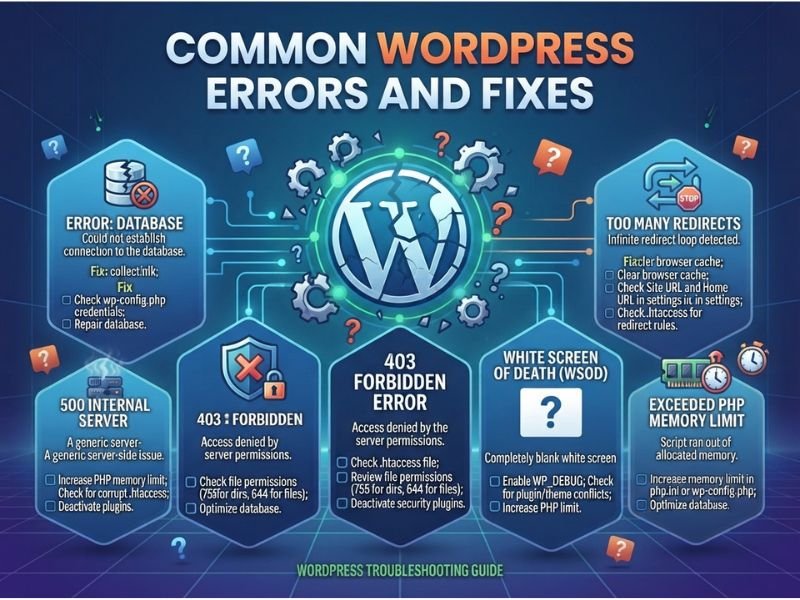
The absence of a website can be caused by many things like a blank page, database alert, unsuccessful login, and problems with file upload. The list of potential reasons includes plugins, theme-related factors, server configurations, limitations of PHP, SSL configurations, and many other elements related to the hosting service. The article describes several common WordPress errors and ways how to fix them with minimal effort.
Common WordPress Errors at a Glance
Error or symptom |
First check |
Jump to fix |
White screen or critical error |
Recovery email and logs |
#critical |
500 Internal Server Error |
Server/PHP logs |
#500 |
Database connection error |
Database credentials and host status |
#database |
Post/page 404 |
URL and permalinks |
#404 |
403 Forbidden |
Security rules and permissions |
#403 |
Memory/time limit error |
Failing process and resource limits |
#memory |
Syntax/parse error |
Recent code edit |
#syntax |
Redirect loop |
Site URLs and HTTPS rules |
#redirect |
SSL or mixed content |
Certificate and resource URLs |
#ssl |
Maintenance mode |
Update status and .maintenance |
#maintenance |
Image upload HTTP error |
File size and server limits |
#upload |
Changes not showing |
Cache and publication status |
#cache |
Email/form notification failure |
Mail configuration and delivery |
|
Plugin/theme problem |
Compatibility and conflicts |
#plugin |
502/503/504/429 |
Host status and logs |
#gateway |
Common WordPress errors can be caused by various reasons, so this chart can serve as an indication point only and not a diagnosis.
Before You Start Troubleshooting WordPress
Before trying to fix WordPress errors, record the exact message, affected URL, and approximate time the problem began. Note any recent plugin, theme, PHP, hosting, DNS, SSL, or configuration change.
Make a recoverable files-and-database backup before editing important files. WordPress recommends using staging or an appropriate backup before modifications.
If you cannot reach wp-admin, use your hosting File Manager or SFTP instead. Check Site Health and available server logs before making speculative changes. WP_DEBUG, WP_DEBUG_LOG, and WP_DEBUG_DISPLAY are functionalities that are built into WordPress, which can be utilized to debug any PHP errors, but debugging should always be done responsibly.
Always make changes in a controlled manner, and if possible, replicate the error on your staging site to ensure that you do not affect your live site.
15 Common WordPress Errors and Their Solutions
1. White Screen of Death or Critical Error {#critical}
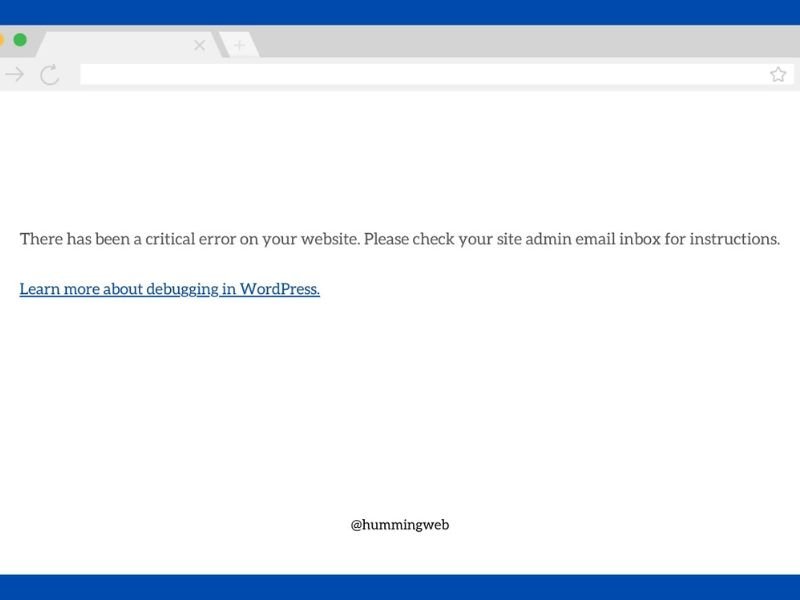
While a white page combined with a message that “there has been a critical error” may seem alike, they are not always caused by the same problem. The problems include plugin/theme conflicts, PHP incompatibility, memory limitations, and corrupt files.
To fix WordPress errors like these:
- Check the recovery email sent by WordPress.
- Review hosting PHP logs or debug.log.
- If wp-admin works, deactivate the suspected plugin or switch temporarily to a compatible default theme.
- If the dashboard is unavailable, use File Manager or SFTP to isolate the suspected component.
- Test both the homepage and /wp-admin/.
WordPress specifically recommends checking the recovery email and debugging information for critical errors.
2. 500 Internal Server Error {#500}
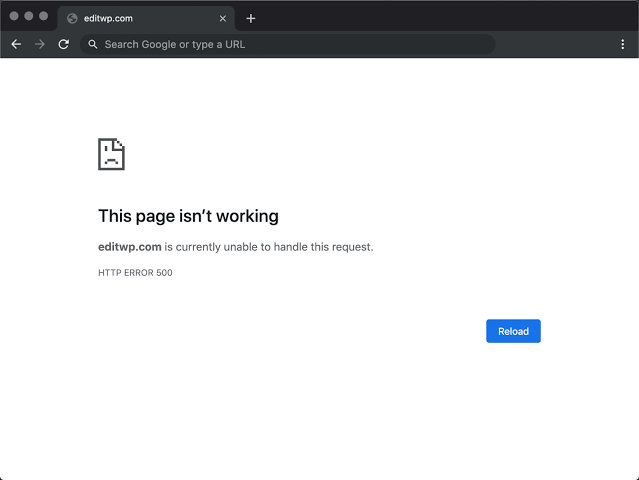
The appearance of the 500 status code suggests that an internal server error took place while processing the request. First, investigate PHP and server logs; then, examine any recent updates to plugins, themes, PHP, or other configurations.
A plugin conflict or server configuration problem may be responsible. If your host uses Apache, .htaccess rules may matter. However, .htaccess troubleshooting is server-specific. Nginx uses server-level configuration instead and does not use .htaccess in the same way.
Restore a known-good configuration when appropriate, then retest the exact affected URL.
3. Unable to Connect to Database {#database}
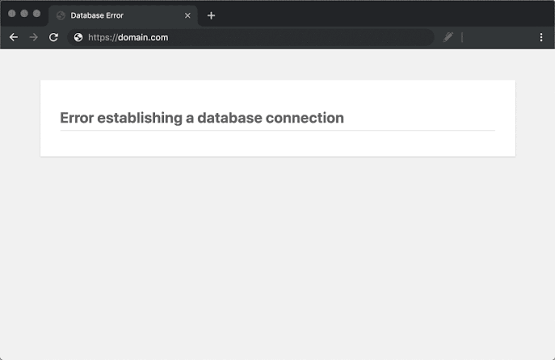
This is displayed if WordPress cannot connect to its database. The first step to fix this issue is to make sure that the database name, username, password, and hostname are the same as provided by your host.
Secondly, check if your database server is up and if you have exhausted your quota in terms of connections, CPU, memory, or storage.
If everything is okay with the credentials but your database is still not working or appears corrupt, then first contact your hosting provider and then fix the issue.
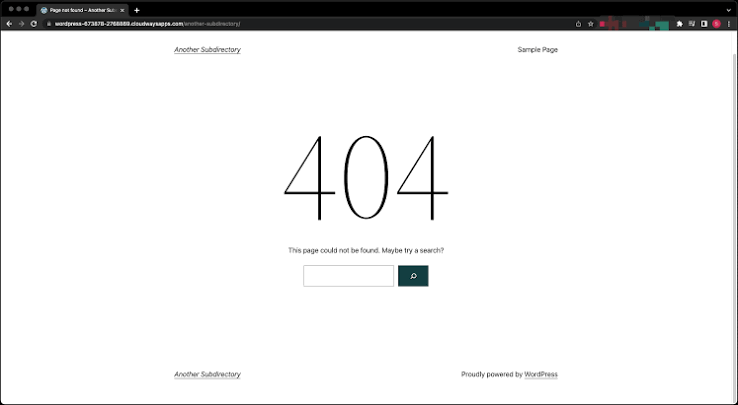
4. 404 Error for Post or Page {#404}
The reason for receiving a 404 error is the non-existence of the requested resource or misrouting. It is necessary to verify the URL, slug, publishing, and whether the page.
Custom post types can also experience rewrite-rule conflicts. If you have dashboard access, go to Settings > Permalinks and save the current structure to refresh rewrite rules. WordPress documents this as a useful step for permalink-related 404 problems.
For genuinely moved content, use a relevant redirect to the new URL. Avoid redirecting every missing page to the homepage.
5. 403 Forbidden Error {#403}
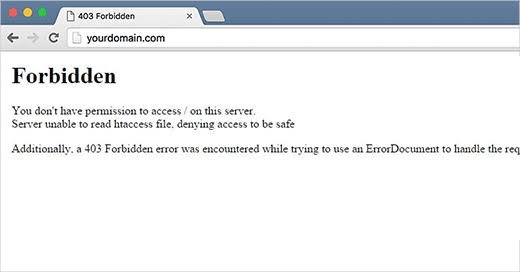
A 403 response code suggests that the server or security system is not granting access to a particular request.
Consider checking your security plugins, firewall configuration, restrictions set by the host, blocked IP addresses, file permission and ownership. Do not make any changes to these just to resolve the issue.
Identify what is being blocked and adjust the narrow rule responsible. Then retest the specific page, file, login action, or upload that produced the 403.
6. Memory Exhausted or Maximum Execution Time Exceeded {#memory}
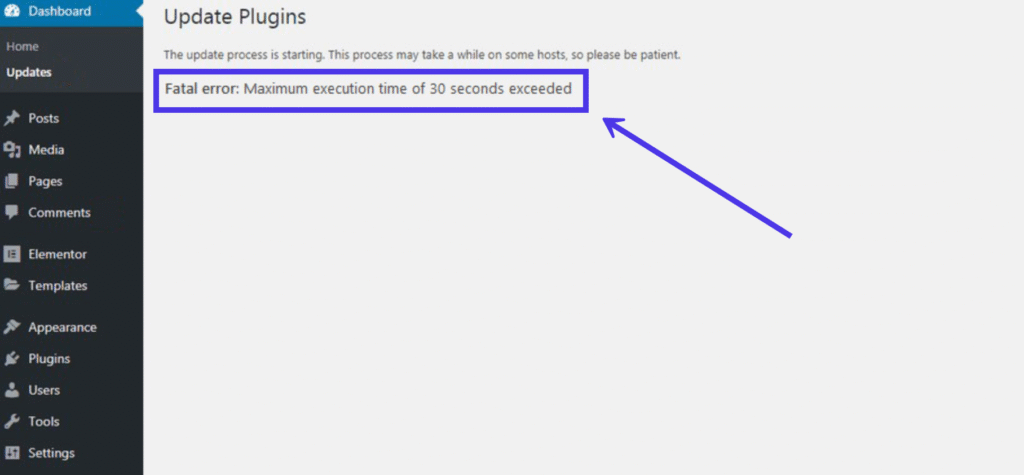
These are resource-limit problems, but they are different. A memory error occurs when PHP needs more memory than allowed. An execution-time error occurs when a process runs longer than its permitted duration.
Identify the exact operation that fails. A large import, image process, backup, database query, or resource-heavy plugin may be involved.
Your host may control PHP memory or execution limits, so check the hosting configuration before changing them. After an adjustment, repeat the original operation and confirm that it completes.
7. Syntax or Parse Error After Editing Code {#syntax}
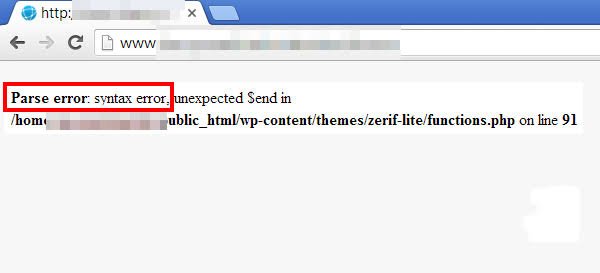
A syntax error is likely to occur immediately after making changes in PHP code in a theme file, a plugin, or wp-config.php.
The error will help you find out which file needs debugging. Restore the last working version or remove the faulty snippet through File Manager or SFTP.
Check the lines around the reported location because the actual mistake can occur immediately before the line named in the error. Reload both the affected page and admin area after restoring the code.
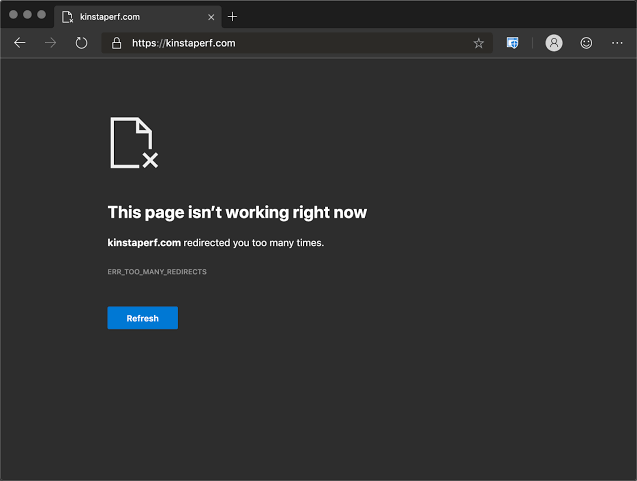
8. Too Many Redirects or a Login Redirect Loop {#redirect}
A site-wide redirect loop is different from a login redirect loop. First, delete the cookies on your website and test your website on a private browser tab.
Next, ensure the WordPress Home and Site URL values and the redirect rules are set properly.
Lastly, since CDN/Reverse proxy manages SSL, confirm that WordPress gets the correct HTTPS details.
According to WordPress documentation, conflicting URL, SSL, proxy, and cache settings may create redirect loops.
Test a fresh login and the public site after each change.
9. Common WordPress SSL Errors and Mixed Content {#ssl}
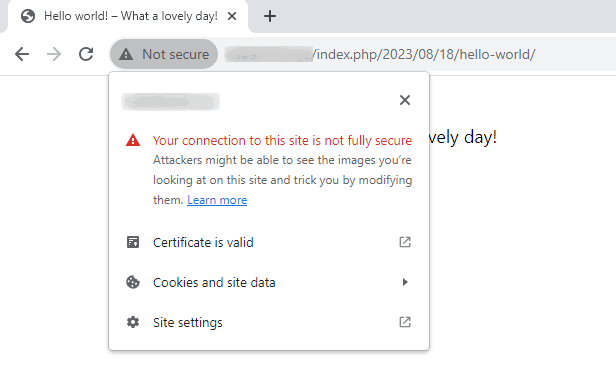
SSL issues can either be with the certificate itself or with insecure resources included on an otherwise secure page. Verify that the certificate is up to date, valid for the right hostname, and properly configured.
Next, check images, scripts, fonts, stylesheets, etc. for http:// references.
If using a CDN or reverse proxy for SSL termination, make sure it is configured correctly and also look at your WordPress settings.
WordPress can use HTTPS if a proper TLS certificate and server configuration are present.
Verify affected pages in a normal browser without bypassing security warnings.
10. Stuck in Maintenance Mode or a Failed Update {#maintenance}
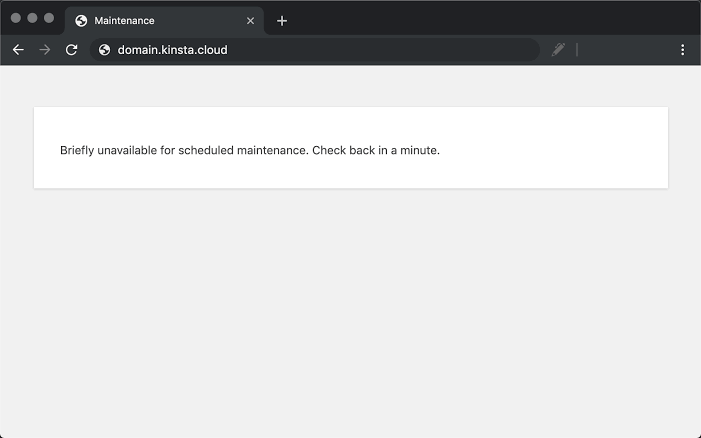
WordPress creates a temporary .maintenance file during updates. If an update is interrupted, the site can remain in maintenance mode.
First confirm that no update is still running. If the file is stale, remove .maintenance from the WordPress root using File Manager or SFTP.
Then check whether the plugin, theme, or core update actually completed. If updates repeatedly fail, review PHP compatibility, permissions, available storage, and server logs before trying again.
11. HTTP Error When Uploading Images {#upload}
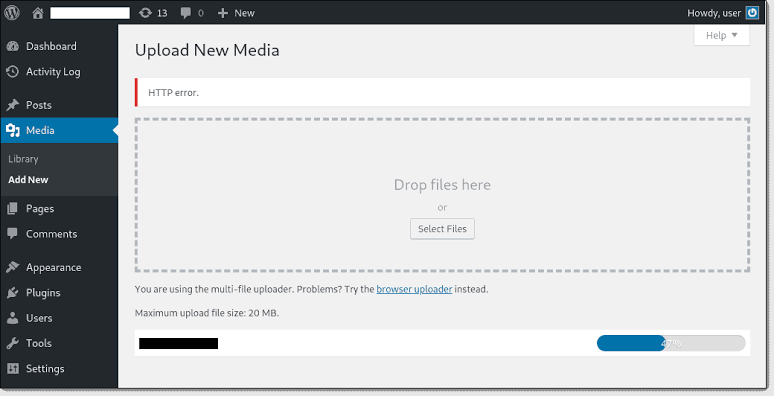
Try uploading an image of small size and see if it works or not. The problem could be related to file size or dimensions of images, PHP upload restrictions, image processing, storage, or permissions.
Review the limitations of the host regarding uploads and PHP restrictions as well as ensure that WordPress has permission to write in the folder where uploads take place.
A 413 error indicates a restriction on the request size, whereas a disk write issue has another source. Once you make a change, try uploading the original file and check if the appropriate image sizes have been created by WordPress.
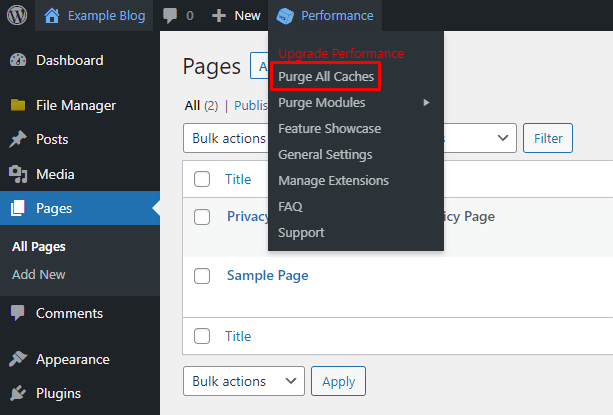
12. WordPress Changes Not Showing {#cache}
First of all, make sure that your changes were indeed saved, published, and made on the right page. Then look into the browser cache, WordPress caching plugins, the hosting cache, and CDN cache.
Test your page in incognito mode or when not signed in. Do not clear any cache but the one related to your update.
In case you see the old version on your site, go through the source code or cache headers and make sure that the right URL is used.
13. WordPress Not Sending Emails or Form Notifications {#email}
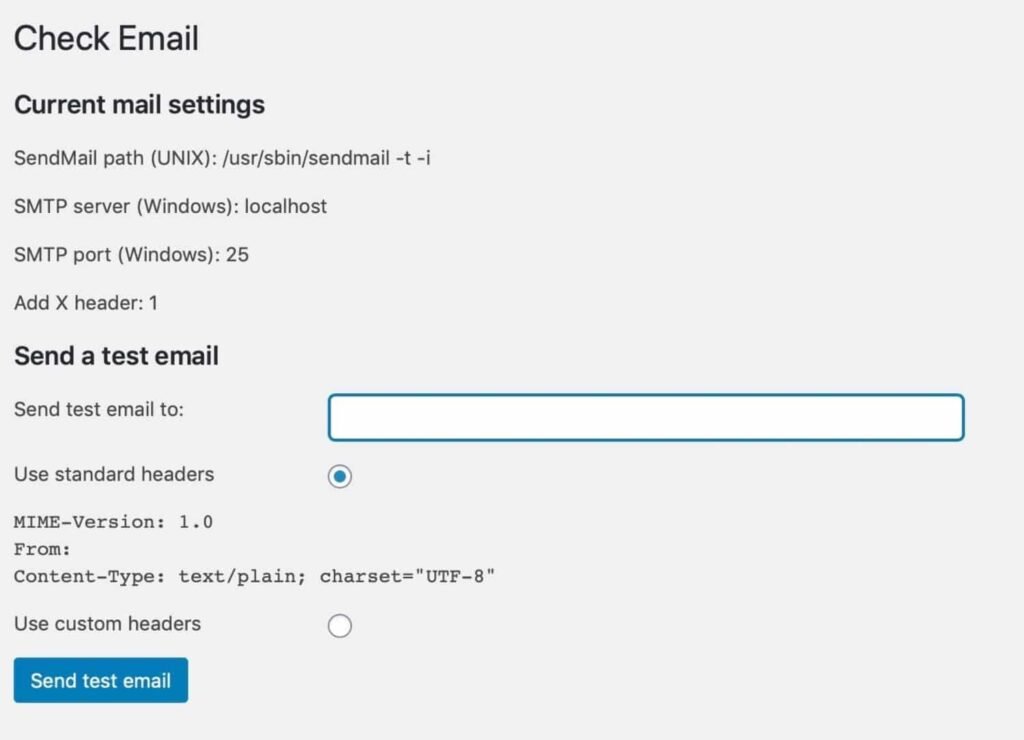
Separate two problems: the form may not be saving the submission, or the message may be generated but not delivered.
Check saved entries, mail logs, SMTP or provider settings, sender configuration, and authentication requirements. Submit a test to see if the email is going through to the destination inbox.
In case your form data is being stored but no email goes through, concentrate on troubleshooting email delivery issues and not on fixing the form.
14. Plugin Not Working or WordPress Theme Errors {#plugin}
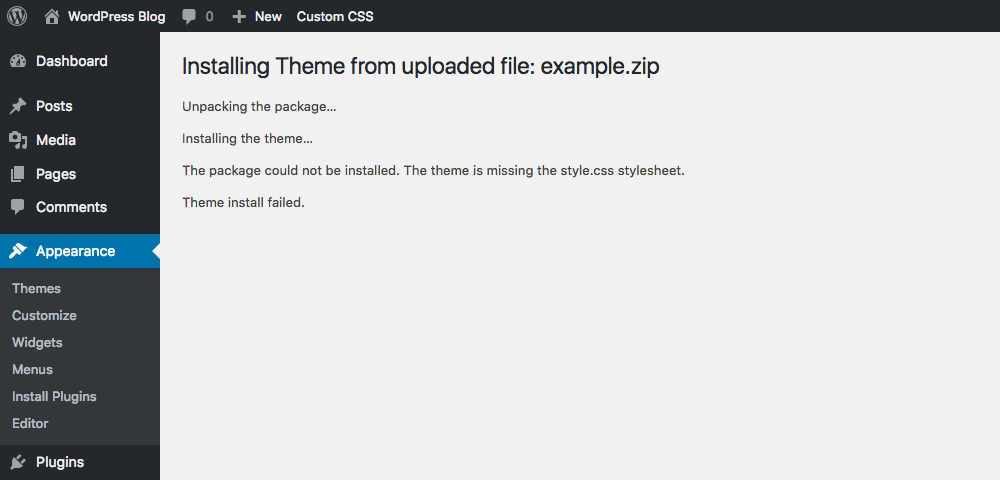
Plugin and theme problems can appear as missing features, broken layouts, JavaScript errors, failed settings, or PHP crashes. Compatibility with WordPress, PHP, another plugin, or the active theme should be considered.
Test the problem on staging when possible. Disable components one at a time to isolate a conflict, then compare the website with a compatible default theme.
If the problem causes a critical crash, return to the critical-error steps above. WordPress debugging tools can help expose PHP and JavaScript problems.
15. 502/503/504 Errors, Timeouts, and 429 Responses {#gateway}
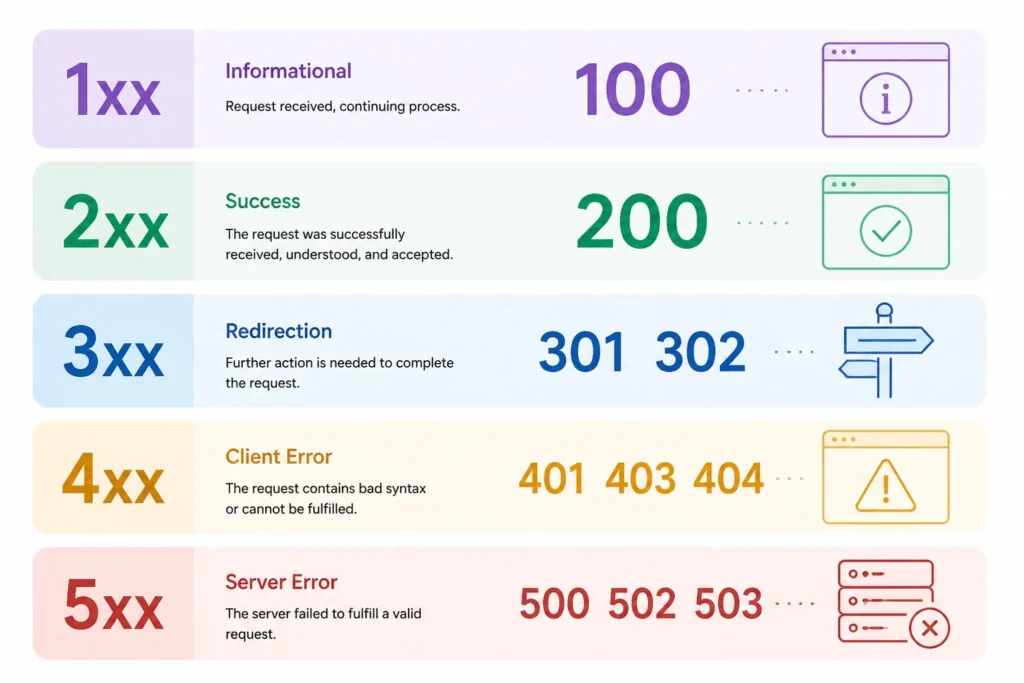
These status codes describe different situations:
- 502: A gateway or proxy received an invalid response from an upstream service.
- 503: The requested service is temporarily unavailable.
- 504: A gateway or proxy waited too long for an upstream response.
- 429: The server or service is rate-limiting requests.
Check hosting status pages, server logs, recent traffic changes, and resource usage.
cURL 28 Error indicates that the outgoing cURL request has experienced a timeout error and must not be considered equivalent to a 502, 503, 504, or 429 response.
Test the original request again once the problem that triggered it has been fixed.
How to Prevent Recurring WordPress Errors
Use this simple checklist to reduce repeat problems:
- Keep recoverable files and database backups.
- Test major updates and configuration changes.
- Keep WordPress, PHP, plugins, and themes compatible.
- Remove unused plugins and themes.
- Monitor uptime, storage, and recurring server errors.
- Keep a short change log for updates and configuration edits.
Good maintenance can reduce recurring common WordPress errors, but no website can be protected from every server, software, or configuration failure.
When to Contact Your Host or a WordPress Developer
Contact your hosting provider for database availability, server configuration, persistent gateway failures, and resource limits. Contact a plugin or theme developer when a reproducible component conflict or faulty custom code is responsible.
When asking for assistance in debugging WordPress issues, please specify the issue, affected URL, time, any changes made, and sanitized logs if possible. Do not share your passwords, API keys, database credentials, and other sensitive data through support tickets.
Frequently Asked Questions
How to Fix WordPress Errors?
Identify the symptom, consider recent actions and logs, test one possible cause, and check the functionality of the affected element afterwards. This is safer than attempting to solve everything at once.
What should I do when my WordPress is not working, and I am unable to access wp-admin?
Try first using the recovery email address. If it fails, use File Manager or SFTP from your host to check the logs, find the extension or theme causing the issue, or restore a file.
Why does WordPress fail after updating?
It happens because of incompatibility issues, incomplete updates, PHP version changes, or conflicts between components. Do not assume all failures have the same cause; check logs and update history.
Where are WordPress Error Logs Located?
You can find the logs provided by your hosting in PHP and server logs. Also, WordPress can create a log in wp-content/debug.log if debugging and logging are enabled. debug.log is not available on all installations.
Need Help With WordPress Errors?
Test the affected function again, report the success in repairing the function, and then observe the website. In case similar issues arise in the WordPress site repeatedly, get assistance from your web hosting company or from a WordPress expert.