

The process of Figma to WordPress comes after the design of your website has been approved. It can be difficult to create an efficient and editable site from a beautiful static design without compromising any of the features that made it so.
We’ve analyzed the various techniques used when converting from figma to WordPress. Some are quick to execute but result in poor-quality code. The others are slow to implement but offer more control and optimization possibilities.
In this guide, we will explore three viable options for dealing with figma to WordPress projects, conversion tools, manual page-builder development and custom WordPress theme design. We will outline the advantages and drawbacks of all these techniques.
What Figma to WordPress Conversion Actually Involves
The proper process of converting figma to wordpress goes far beyond just transferring designs from one platform to another.
Figma is a interface designing tool which generates designs like layouts, components, colors, and prototypes. WordPress is a content management system where you should have live code, responsive layout, editable content, databases, and reusable templates.
It means that the figma to wordpress conversion requires the conversion of static elements of design into website components.
You should be able to generate responsive breakpoints, identify editable content zones, optimize images, connect forms, and verify functionality of the website.
Automated conversion tools can provide a useful starting point, but complex layouts and functionality may still require manual adjustments and testing.
Why Exported Designs Break
Exported designs often fail because the generated code does not understand how a real website should behave.
Common problems include:
- Spacing changes between screen sizes.
- Fonts fail to load correctly.
- Elements rely too heavily on absolute positioning.
- Images become oversized or compressed.
- Complex layouts break on mobile devices.
A design can look perfect inside Figma and still require significant work before it becomes a reliable WordPress website.
Before You Convert: A 6-Point Figma File Prep Checklist
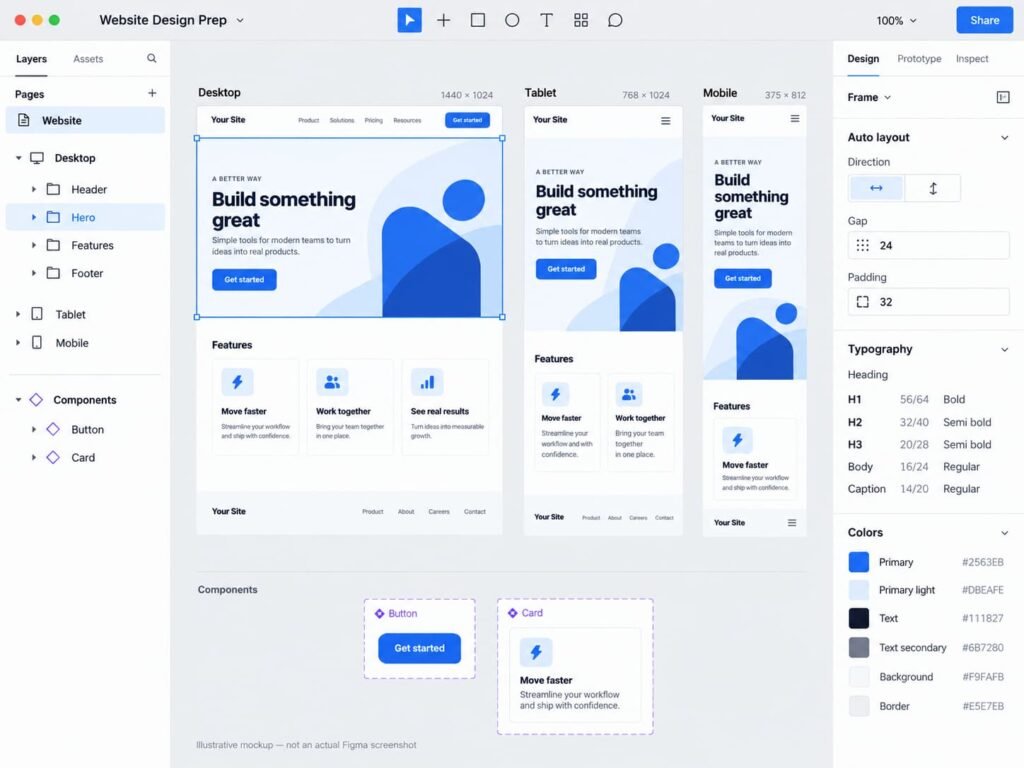
Before starting your figma to wordpress conversion, spend time organizing the Figma file. This simple step can save hours of development work.
1. Use Auto Layout
Apply Auto Layout to important frames and components. This creates more predictable spacing and makes responsive development easier.
2. Use Clear Names and Groups
Give frames, layers, and sections clear names. Avoid files filled with names like “Frame 123” or “Group 45.”
3. Prepare Your Fonts
Please use Google Fonts whenever possible. In case of using any custom fonts, please ensure that you have all the required web fonts and licenses.
4. Define Components and Variants
Buttons, cards, navigation items, and repeated sections should use reusable components.
5. Create Desktop, Tablet, and Mobile Designs
Do not assume developers can guess how your design should behave on every device.
6. Export Images Properly
Prepare images at the correct size and export important assets at 2x when needed.
A clean Figma file makes it much easier to convert figma design to website layouts accurately and consistently.
Method 1: Figma to WordPress Plugins (No-Code)
The fastest way to start a figma to wordpress project is by using a conversion plugin or automated tool.
These tools attempt to read your Figma design and generate editable WordPress layouts or code. They can save time, especially when you are building simple marketing pages.
However, results vary significantly depending on how complex your design is.
UiChemy
UiChemy is designed to help users bring Figma designs into WordPress-compatible builders.
The general workflow is simple:
- Connect your Figma design.
- Select the frame you want to convert.
- Generate the page.
- Open and edit the result in a supported builder.
You could either go for builders like Elementor, Gutenberg, or Bricks depending on your configuration.
Where the design is not complex, this method of Figma to WordPress will save you some development time.
However, you should still review every section before publishing.
Yotako (Figma to WordPress)
Yotako is more automation focused. It employs AI-assisted generation to produce designs for the website which can be downloaded and further developed.
This technique will be handy where there is need for a quick solution.
The strength of the process lies in its speed. The weakness is that the output from the generation may require manual cleaning.
Figma to WordPress Block
Some tools focus on generating HTML and CSS that you can place inside a Custom HTML block in Gutenberg.
This can help with simple landing-page sections.
However, this option usually requires more technical knowledge. You may still need to manually handle responsive behavior, styling conflicts, and future edits.
FigWP
FigWP-style workflows focus on turning design elements into editable builder components.
This can be helpful for users who already work with Elementor and widget-based systems.
The biggest benefit is that the final website can remain easier for clients to edit than a completely static HTML export.
Figma to WordPress Plugin Comparison
| Plugin/Tool | Builder Support | Free Tier | Editable Output? | Best For |
| UiChemy | Elementor, Gutenberg, Bricks | Depends on plan | Yes | Fast page creation |
| Yotako | Theme/code output | Limited options may vary | Yes, editable WordPress themes, according to the developer | AI-assisted development |
| FigWP | Elementor workflows | Depends on plan | Yes | Elementor users |
Where Plugins Fall Short
This is the part many articles avoid discussing.
Plugins can help you start a figma to wordpress project, but they rarely finish a complex client website perfectly.
Here are the biggest problems we see:
Bloated CSS: Automated tools can generate unnecessary styling.
Custom animations disappear: Advanced interactions often need to be rebuilt manually.
Dynamic content still requires development: Blog loops, WooCommerce products, custom post types, and advanced filters usually need additional work.
Maintenance becomes harder: Automatically generated structures may confuse future developers.
If you have a brochure website, you can utilize automation tools effectively. But for bigger websites, you will need to use automation tools only as an initial step towards building your site.
Method 2: Rebuilding Manually in a Page Builder
For many client projects, manually rebuilding the design is the most balanced option.
This method will allow you to make figma design to website layout conversion with full control over responsiveness and editing.
Such popular methods are Elementor, Bricks, and Gutenberg.
A good workflow example would be:
- Set global colors.
- Define typography.
- Build the header and footer.
- Create reusable sections.
- Build individual pages.
- Complete a dedicated responsive testing pass.
This method takes longer than a one-click export, but the final result is usually cleaner.
It is especially useful when clients will regularly edit their own website.
The time required to rebuild a Figma design in WordPress depends on the number of pages, layout complexity, and required functionality. Include time for responsive adjustments, content setup, integrations, and testing when estimating the project.
This method is often our preferred figma to wordpress conversion option for standard business websites because it provides a strong balance between speed and flexibility.
If you are planning a larger project, you can also connect this workflow with your professional WordPress website development services.
Method 3: Custom Coded WordPress Theme
A custom theme is the most technical route for figma to wordpress development.
Typical workflow includes:
Figma → HTML/CSS/JavaScript → WordPress theme → Dynamic fields
Tools can be used, for example, Advanced Custom Fields (ACF) for making content editable.
It works best for:
- Highly unique layouts.
- Advanced GSAP animations.
- Performance-critical websites.
- Large custom platforms.
- Complex WooCommerce projects.
A custom theme gives developers complete control over the code.
That can make it easier to optimize Core Web Vitals and reduce unnecessary JavaScript or CSS.
Page builders are convenient, but a poorly optimized builder website can load extra resources. A carefully coded theme can provide a lighter structure.
The tradeoff is development time and cost.
If one requires a specialized, scalable website with high performance, then custom web development is the best solution when it comes to converting a figma design to website code.
Which Method Should You Choose?
The approach to converting your Figma design to WordPress website will depend on your budget, timeframe, and requirements for the future of your site.
| Scenario | Recommended Method | Estimated Time | Cost Range |
| Simple 5-page brochure site | Plugin | Fast | Low |
| Client site with ongoing edits | Page builder | Medium | Medium |
| E-commerce or advanced animations | Custom theme | Longer | Higher |
| Agency delivering websites at scale | Hybrid approach | Medium | Varies |
A hybrid workflow can also work well.
For example, you might use automation to speed up basic sections and manually rebuild important pages. This approach can improve efficiency without sacrificing quality.
5 Common Problems After Figma to WordPress Conversion (and How to Fix Them)
Even a successful figma to wordpress conversion can create unexpected problems.
1. Fonts Did Not Render Correctly
Check font files, font weights, and fallback fonts before publishing.
2. Mobile Layout Collapsed
The original design looked good on desktop but needed separate responsive rules for smaller screens.
3. Images Were Blurry or Too Large
We exported better image assets and compressed them using modern web formats where appropriate.
4. Tablet Spacing Was Broken
Desktop and mobile layouts are not enough. Tablet testing often reveals spacing problems that need custom adjustments.
5. PageSpeed Scores Dropped
We reduced unnecessary scripts, optimized images, and removed unused builder assets where possible.
These problems are exactly why testing should always be part of the figma to wordpress workflow.
Post-Conversion Checklist
Before launching your website, complete this checklist:
- Test desktop, tablet, and mobile layouts.
- Check all forms and email notifications.
- Test navigation and buttons.
- Optimize images and loading speed.
- Check the heading hierarchy.
- Add descriptive alt text.
- Review meta titles and descriptions.
- Test basic SEO settings.
- Create a full website backup.
- Check the site in multiple browsers.
A proper figma to wordpress conversion is not complete when the page looks correct. It becomes complete when the website runs properly for actual users.
Frequently Asked Questions
Can I convert my Figma design to a website?
Yes. Figma Sites lets you build and publish live websites. However, publishing with Figma Sites is different from creating a WordPress website. To use WordPress, you need to convert or rebuild your Figma design using a compatible plugin, a page builder, or a custom WordPress theme.
How do you convert Figma to Elementor?
This can be done through a conversion tool that supports the Elementor page builder or by recreating your design in Elementor.
Can you convert Figma to WordPress for free?
There are tools that provide basic conversions or have a free plan. In addition, one can recreate their Figma design manually using Gutenberg editor.
How long does it take to convert Figma to WordPress?
Conversion time depends on your design’s complexity, page count, chosen method, and required features. Simple layouts generally take less time than custom websites. Your estimate should also account for mobile adjustments, integrations, and testing before launch.
Does converting Figma to WordPress affect SEO or site speed?
Converting a Figma design to WordPress does not automatically improve or harm SEO. The outcome depends on the finished website’s content, code, mobile usability, loading speed, and technical setup.
Conclusion: Choosing the Right Figma to WordPress Method
The successful transformation of a figma to wordpress isn’t limited to how much the website looks like the design you initially approve.
Plugins are good for speed, page builders can offer flexibility to those who will have to change the content, and custom themes can give you the most control and efficiency.
Choosing the solution depends on your needs.
If you require a professional development team to build you an efficient, responsive and scalable website out of your approved design, check out our WordPress Development Services.