

“Needs Improvement” URL is reported via Search Console; the client asks why, and all the tutorials tell you the same five things to do: optimize images, add caching, use CDN, minimize code, and you’re done. Well, this is not completely wrong, but it usually misses the most crucial step of a Figma-to-WordPress project: discovering what slows down your website.
Figma to WordPress projects can be quite challenging since it’s possible to have a great design but a WordPress website with extra DOM nodes, extra JavaScript files, additional fonts, and animations. We are not trying to get an excellent result on Lighthouse screenshots; we want to improve the actual speed of the page.
Here’s the complete Figma to WordPress tutorial with useful recommendations and things that are not worth your attention.
TL;DR
- Work on field data before optimizing anything for the Figma to WordPress website.
- Optimize your hosting and TTFB before going crazy with plugins; effective website speed optimization begins with the server.
- LCP: focus on the hero asset and CRP.
- INP: decrease the amount of JavaScript execution and third-party code.
- CLS: allocate space for everything that will load after the page load.
- Effective website speed optimization should make visitors’ lives better.
The Three Core Web Vitals in 2026 (FID Is Gone)
A guide that will continue to tell you that FID is among the three Core Web Vitals is an out-of-date guide. FID was removed by Google from the group of Core Web Vitals on March 12, 2024, and INP became the metric of responsiveness. Currently, LCP, INP, and CLS are the three Core Web Vitals.
| Metric | Measures | Good | Needs work | Poor |
| LCP | Loading | ≤ 2.5s | 2.5–4s | > 4s |
| INP | Responsiveness | ≤ 200ms | 200–500ms | > 500ms |
| CLS | Visual stability | ≤ 0.1 | 0.1–0.25 |
The thresholds are assessed at the 75th percentile. To put it simply, the number of experiences that are considered Good should represent at least 75% of all tested experiences in order to make a metric pass.
What is important about it is that fast test performance does not mean uniform experience for all visitors.
Do Core Web Vitals Actually Affect Rankings? An Honest Answer
Certainly, but definitely not in the manner that some SEO blog posts would suggest. According to Google, Core Web Vitals play a part in its ranking systems, but on the other hand, according to the company, having good Core Web Vitals scores does not guarantee you high positions; instead, one should look at page experience holistically.
This is the reason why, in my opinion, you cannot approach website speed optimization as a race to score one point better than a competitor. If you improve your scores compared to a page that performs better content-wise or has stronger backlinks, you will not necessarily outrank it.
In my opinion, the most powerful argument for optimizing website speed is conversion. If users have to wait before they can read something, click somewhere, compare the products, or buy something, this can hurt your business in real dollars.
Thus, think of Good as the minimum requirement that has to be met. Then spend your SEO efforts somewhere else.
How to Measure Before You Fix Anything
Field Data vs Lab Data
This is very helpful in reducing a lot of efforts that are wasted. This is because PageSpeed Insights has the lab data that is taken from a controlled test, while its field section has the real-user Chrome data if there is enough data available. Another tool that uses real-world user experience data is the Core Web Vitals report in Search Console and is helpful in identifying clusters of problematic URLs.
When your lab score improves from 55 to 90, but there is no improvement in your field performance, you have not solved the main problem at all. You have only made improvements in the testing environment or scenario.
This is crucial for a Figma-to-WordPress site, as a homepage may function differently from a service page, blog post, or landing page using another template.
The Three Tools Worth Using
First, check the Search Console Core Web Vitals report for URL groups that have problems. Then, conduct PageSpeed Insights tests of Figma-to-WordPress pages. If needed, conduct a waterfall analysis of the page using DebugBear or GTmetrix to identify problematic requests and files slowing down the page.
If you have access to a real client report, include the screenshot right after this section. It will be much more valuable for your article because people will finally see what a report looks like, not just read a description of some report.
How to Improve LCP (Largest Contentful Paint)
Performance issues typically occur at the LCP stage when using WordPress. If your Figma-to-WordPress website has issues loading pages fast, the first step you need to take is realizing that not all optimizations are equally critical.
1. Fix Hosting First
If the server needs more time to send back the first byte, it means that all the processes below are delayed. In the case of a Figma-to-WordPress marketing website, for example, it would be good to have the lowest TTFB possible, no higher than 800 ms.
However, if your origin server works slowly, there is no way an image plugin will save your page. Better hosting can lower your page loading time before any changes on the frontend side take place.
2. Preload the Hero Image
If the largest item is the hero image, then inform the browser about this early on using preload where appropriate and fetchpriority=”high” on the image. This will enable the browser to treat this item as a priority and thereby optimize the page loading process.
The key thing here is the word “appropriate.” Preloading of all images will create a new problem of bandwidth contention.
3. Never Lazy-Load the Above-the-Fold Hero
Lazy loading is good for the images that come later in the website, but implementing lazy loading on the LCP image will make your first important asset load late.
Check your caching or image plugin settings instead of taking the default settings for granted. This one adjustment might save you more time than another process of minifying your CSS files.
4. Serve WebP or AVIF
Modern file formats can help reduce the image size without compromising the appearance of the website’s layout. Automated processes are made possible by services like ShortPixel and Imagify.
In the case of a design that has a lot of images, this can be one of the simplest things to do because images can get very heavy.
5. Add a CDN
However, CloudFlare is sufficient enough for small to medium-sized WordPress websites. A CDN would lessen the distance between users and cached resources and could relieve some burden on the origin server.
For a business where there are users who come from different parts of the USA, having a CDN helps in reducing page loading times by accessing cached resources that are nearer to the user.
6. Remove Render-Blocking CSS and JavaScript
Don’t minify just anything blindly. Load crucial CSS in advance, defer non-crucial JavaScript, and delete files that are not needed by the page at all.
It is essential to decrease the page load time rather than minimize the size of the source files. A small JavaScript file that delays rendering of the page can be more vital than a big file that loads later.
7. Reduce DOM Size
A complex Figma to WordPress layout using a page builder could potentially generate hundreds or thousands of individual elements for the browser to process. It explains why even a very pretty-looking Figma to WordPress website could be highly inefficient.
Remove redundant sections, duplicated containers, widgets, and decorations that do not serve any specific purpose. Neat code will allow performing optimizations much more easily later.
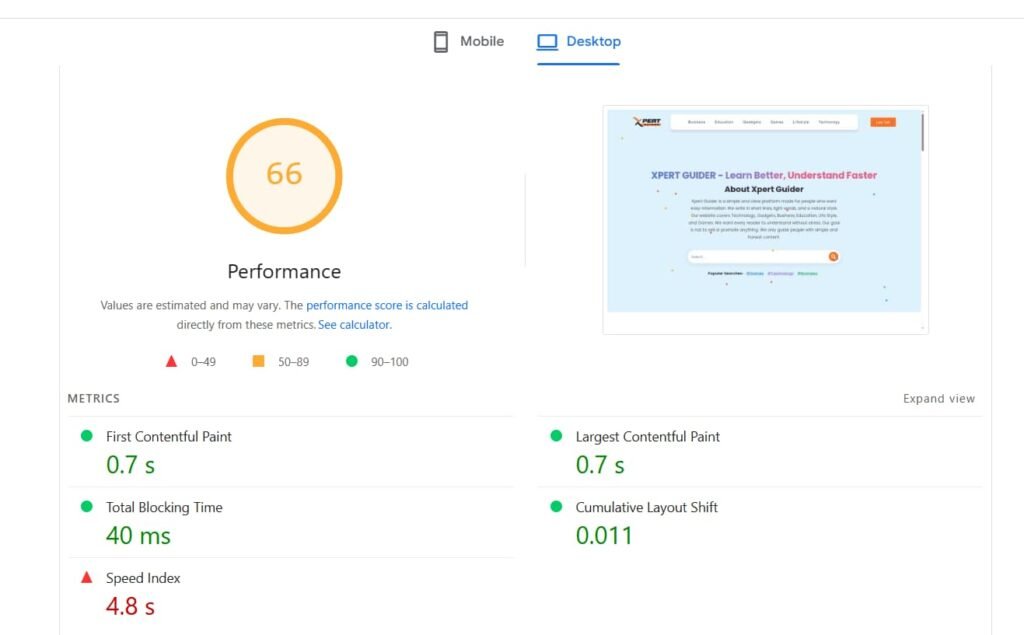
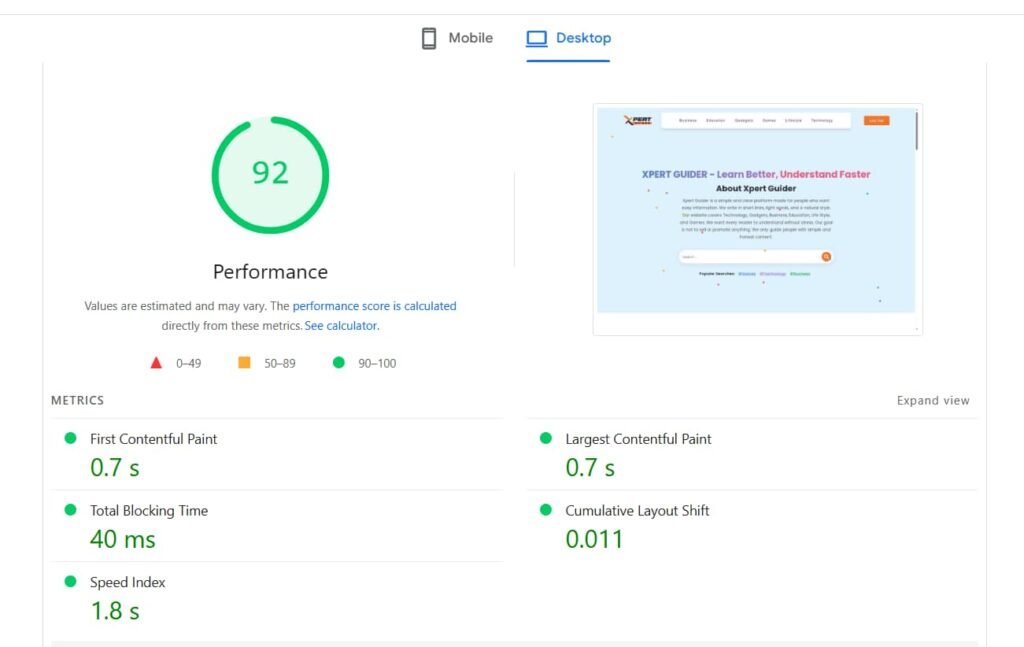
One real-world example: one client page was improved from 4.1 seconds of LCP down to 1.8 seconds after addressing the biggest issues. In particular, in this Figma-to-WordPress project, optimization involved faster hosting, priority loading of the hero image, usage of a lighter image format, removal of blocking resources, and reduction of the page-builder output.
Conclusion: use several fixes on top of each other rather than relying on one magic plugin.
How to Improve INP (Interaction to Next Paint)
INP gauges how fast the page responds to user interactions. Simply put, this metric is the delay between interaction and the next response from the page. This explains how a fully loaded page can be frustrating.
When migrating a website from Figma to WordPress, the biggest issue affecting INP on a WordPress page is often the script. Long-running scripts take up the main thread of the browser, thus delaying the user’s interaction. Break down the long-running scripts into smaller bits and yield to the browser where appropriate.
The next step will be auditing third-party scripts. Chat live, heat maps, analytics, ad tags, social buttons, and tracking pixels could be competing for the attention of the main thread. Ensure that your scripts have earned their space.
Non-critical scripts are best delayed until when required. WP Rocket and Perfmatters plugins offer controls for delaying or optimizing JavaScript, but testing each tweak will be essential since aggressive settings will break menus, forms, sliders, checkout processes, or even other interactions.
Also important is plugin bloat. The scripts loaded by a plugin do not necessarily need to have an obvious presence in the frontend to affect the INP negatively.
The page builders like Elementor and Divi can be quite expensive in terms of Figma-to-WordPress migration because of complex pages that require additional JavaScript and markup. This does not mean that you should ditch the builder altogether; it just means that you need to know the bare minimum needed by the page.
If the website optimization speeds up the initial load but the page seems sluggish after tapping, then INP is your next metric of interest.
How to Improve CLS (Cumulative Layout Shift)
CLS is used to measure unexpected page shifts. The issue is obvious: you are about to click on the button, some image appears, some advertisement pops up, and the button moves elsewhere.
Fortunately, CLS is usually one of the least expensive metrics to solve out of the three.
Make sure your images, videos, and iframes have proper dimensions; thus, the browser will know how to reserve space in advance for those resources. Don’t inject any ads, banners, embedded content, or cookie consent notices into the place that was previously occupied by other elements.
Fonts might also be responsible for shifting content. Test font loading in advance and provide a fallback in case if necessary. In case font loading takes too much time, consider using font-display: optional; however, depending on the design/branding requirements, other approaches could be better.
As for animations, try to avoid using properties that require repeating layout calculations. Instead, use transform and opacity properties. And, obviously, try not to add any new content above the visible content of the webpage unless you reserve space for that.
Make sure you reserve space for all the elements that are loaded later, and don’t make any change that could potentially affect page load time problems or create unexpected movement.
A fast and smooth Figma-to-WordPress page doesn’t always mean the actual loading speed improvement.
A WordPress Speed Stack That Actually Works
There are many possible performance combinations using WordPress, yet more plugins don’t mean that you will get higher speeds. The best solution is to have a minimalistic stack with one purpose per component.
| Layer | Recommendation |
| Hosting | A quality managed WordPress host |
| Caching | WP Rocket or FlyingPress |
| Images | ShortPixel or Imagify |
| CDN | Cloudflare |
| Cleanup | Perfmatters |
| Theme | GeneratePress, Kadence, or Blocksy |
What is important is not having overlapping functions while configuring Figma to WordPress. Installing two separate caching plugins can lead to conflicts, redundant optimization, broken scripts, and confusion in testing.
You should choose one major caching plugin and install other tools if needed for addressing a particular problem.
As for the website optimization for speed, less is sometimes more, especially if you know what you are doing.
5 Mistakes That Make Scores Worse
- Attempting to reach a score of 100/100 in lab testing even when the actual data does not improve.
- Using both caching plugins and conflicting each other.
- Implementing lazy loading for the hero image, which is responsible for LCP.
- Turning on aggressive minifying without proper tests for layout and JavaScript.
- Testing only on desktop devices despite the fact that most users use mobile devices.
The reason why this mistakes are easy to commit when going from figma to WordPress is that the developer will be more concentrated on making the design look right.
How Long Before Your Scores Update?
If Search Console is showing the same figures regarding your Figma to WordPress migration after making all the changes, do not be worried, as field data is gathered gradually and Search Console uses a 28-day rolling average for reporting. There is a possibility that your site has improved while the report takes weeks to show this improvement.
Use PageSpeed Insights and controlled testing to measure page load time instantly, but use real user data to determine the long-term effect.
Frequently Asked Questions
Core Web Vitals 2026—Do I Need It?
Yes. Core Web Vitals are still being used for Google ranking and improving search success, as recommended by Google itself. It is an important metric, but not the only one.
What Is a Good Score for Core Web Vitals?
Its score should consist of the highest LCP score at 2.5 seconds, the highest INP score at 200 milliseconds, and the highest CLS score at 0.1 at the 75th percentile threshold.
What Are Core Web Vitals?
Currently, there are three Core Web Vitals: Largest Contentful Paint, Interaction to Next Paint, and Cumulative Layout Shift. However, FID was replaced by INP in March 2024.
What Are the Limitations of Core Web Vitals?
Core Web Vitals don’t cover all aspects of a website experience. They also don’t guarantee better ranking in Google Search. A fast page that is less relevant and useful will rank lower than the competitor. This fact is clearly stated by Google, and good Core Web Vitals guarantee nothing in terms of top ranking.
How Can I Test Core Web Vitals for Free?
Google Search Console for field data and PageSpeed Insights for page-level testing. Both are free services. You can get more detailed information from tools such as DebugBear and GTmetrix, which offer waterfall analysis.
Can I Improve Core Web Vitals Without a Developer?
Yes. Many of the necessary actions can be done without programming skills. Image optimization, removal of unneeded plugins, setting up caching, reserving image sizes, and eliminating unnecessary third-party scripts. Some cases of website speed optimization will require a developer, though.
Conclusion
Optimizing the performance from Figma to WordPress is not about scoring perfectly in every single aspect. It all starts with user data, pinpointing the bottleneck, and improving LCP, INP, and CLS one after another. Should you need more development for your website on WordPress, do not hesitate to contact our Website Development and WordPress Development team.